
If you are looking to dive into the premium content library of Australia’s premier streaming service, understanding the Stan app download guide is your first step toward seamless entertainment. As the digital landscape becomes increasingly fragmented, Stan has carved out a significant niche by offering a sophisticated mix of local Australian productions, high-end international dramas, and exclusive sports coverage. Whether you are a cord-cutter looking to replace traditional cable or a cinephile hunting for the latest A24 release, getting the application running on your preferred hardware is essential for a high-fidelity viewing experience. This guide walks you through the technical requirements, installation processes, and optimization tips to ensure you get the most out of your subscription across all your connected devices.
Understanding the Stan Ecosystem
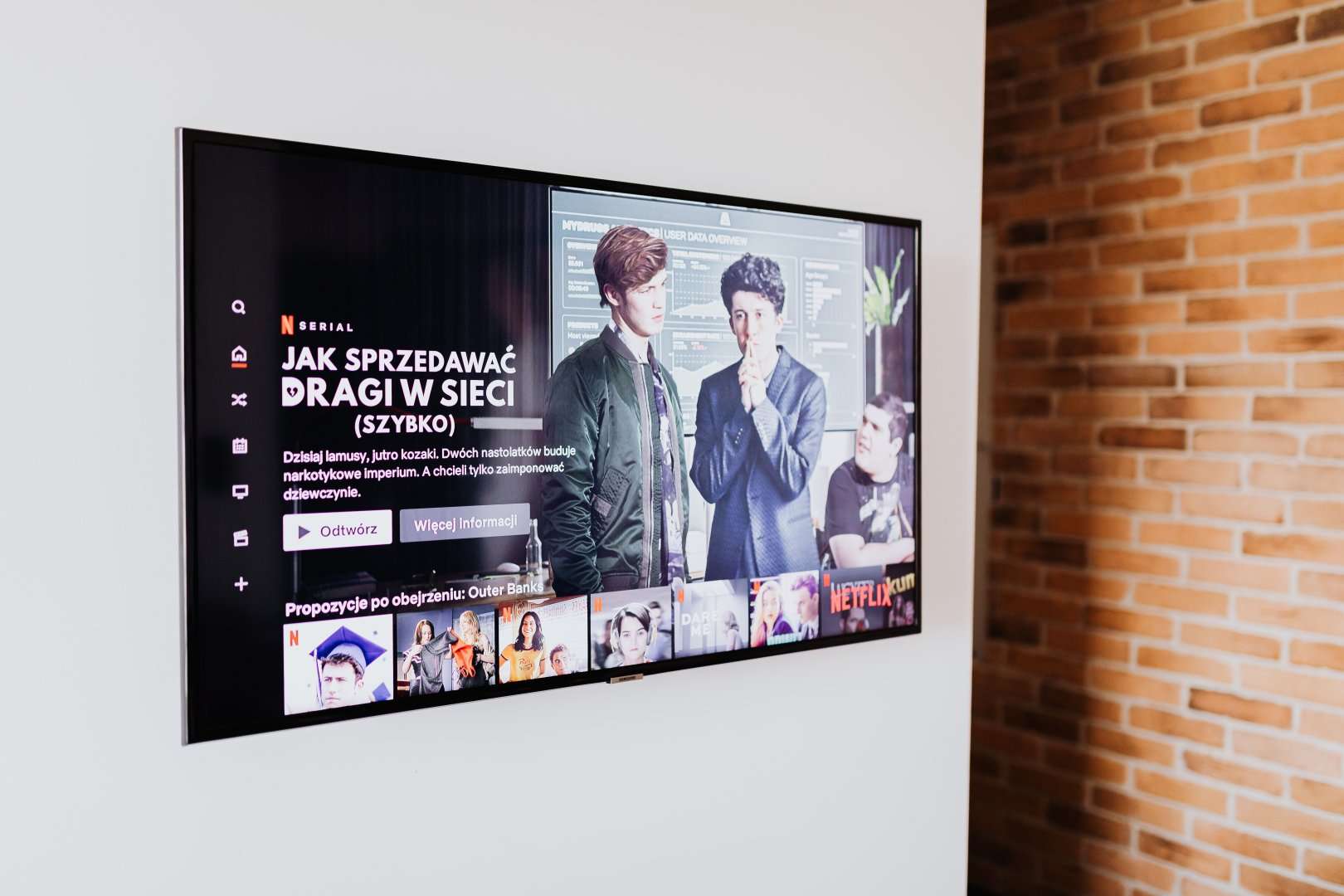
Stan is an Australian subscription video-on-demand (SVOD) service that stands as a pillar of the local media industry. Unlike global giants that prioritize broad, generic catalogs, Stan has built its authority through strategic partnerships with major international studios—such as Lionsgate, MGM, and Warner Bros—while simultaneously investing heavily in “Stan Originals.” For the end-user, this means access to critically acclaimed series and films that are often unavailable on other platforms in the region.
To access this library, you need more than just an account; you need a stable, optimized connection via the official application. Using the app rather than a mobile browser is highly recommended, as it enables features like offline downloads, adaptive bitrate streaming, and superior device-level integration.
Supported Devices and System Requirements

Before initiating your download, it is important to confirm that your hardware is compatible. Stan prides itself on wide-reaching compatibility, ensuring that whether you are using a legacy smart TV or the latest smartphone, you can access your queue.
Compatible Hardware Categories
- Smart TVs: Android TV, Samsung Tizen, LG WebOS, Hisense VIDAA, and Sony Bravia.
- Streaming Media Players: Apple TV (4th Gen and later), Chromecast, Amazon Fire TV, and Telstra TV.
- Gaming Consoles: PlayStation 4, PlayStation 5, Xbox One, and Xbox Series X/S.
- Mobile and Tablet: iOS (iPhone/iPad) and Android devices.
- Computers: Web browser access via Windows, macOS, and Linux (no dedicated desktop app required).
How to Download the Stan App: Step-by-Step
The installation process varies slightly depending on your ecosystem. Below are the standard procedures for the most common platforms.
For Mobile and Tablet (iOS & Android)
1. Open your device’s app store (Apple App Store for iOS or Google Play Store for Android).
2. Use the search function to type “Stan.”
3. Look for the official Stan Entertainment app icon to ensure you are downloading the authentic software.
4. Tap “Install” or “Get.”
5. Once the download completes, launch the app and log in with your credentials.
For Smart TVs and Streaming Boxes
1. Navigate to the “Apps” or “Store” section on your TV’s home dashboard.
2. Search for “Stan” using the on-screen keyboard.
3. Select the app and choose “Add to Home” or “Install.”
4. Upon launching, the app will typically generate a pairing code. Visit the URL provided on your TV screen via a secondary device (like your phone) to activate your account instantly.
Optimizing Your Viewing Experience
Downloading the app is only the beginning. To truly enjoy what Stan has to offer, you should configure your settings based on your hardware capabilities. For 4K Ultra HD content, Stan requires a high-speed internet connection—ideally a minimum of 15 Mbps for a stable stream. If you find your video buffering, head to the “Settings” menu within the app to adjust your playback quality.
Offline Downloads: A Pro Tip
One of the most significant advantages of using the mobile or tablet app is the “Download to Go” feature. This is essential for travelers or those with limited data plans. Simply navigate to the movie or episode details page, look for the download icon (a downward-facing arrow), and save the file to your device. Note that these files are encrypted and can only be played within the Stan app.
Comparison: Stan App vs. Browser Streaming
| Feature | Stan App | Web Browser |
|---|---|---|
| Offline Viewing | Yes | No |
| UI Experience | Optimized for Remote/Touch | Keyboard/Mouse Optimized |
| Hardware Acceleration | Native/Superior | Dependent on Browser |
| Ease of Access | One-click launch | Requires URL entry |
Managing Your Subscription
Stan offers a tiered pricing structure that dictates the quality of your stream (SD, HD, or 4K) and the number of concurrent screens allowed. When you set up the app on your devices, ensure your subscription tier matches your screen’s resolution. If you are using a 4K-capable television, it is highly recommended to subscribe to the “Premium” plan to take full advantage of the screen’s hardware.
Troubleshooting Common Issues
Even with a robust platform, users may occasionally encounter technical hurdles. Here is how to address the most frequent issues:
- Login Failures: Ensure your app is updated to the latest version. Outdated software is the primary cause of authentication errors.
- Playback Errors: Clear your device cache or perform a power cycle on your streaming device (unplugging it for 30 seconds).
- Missing App: If you cannot find Stan in your app store, check your device’s region settings. Stan is primarily a service for the Australian market and may not appear if your account region is set to another country.
Industry Analysis: The Role of Stan in the Streaming Wars
From an industry perspective, Stan’s success is a case study in localization. While global competitors like Netflix and Disney+ dominate through sheer volume, Stan maintains its competitive edge by acting as a cultural hub for Australian viewers. By securing local sports rights (such as Rugby Australia) and producing high-quality local content, they have ensured that the app remains a “must-have” on the home screens of Australian households. For the user, this translates to a curated experience that feels less like a bottomless pit of content and more like a premium broadcast service.
Frequently Asked Questions
Is there a cost to download the Stan app?
No. The application is free to download on all supported platforms. However, you must have an active paid subscription to stream content.
Can I use my Stan account while traveling overseas?
Stan is licensed for use within Australia. While you may be able to access the app, content availability is strictly geo-restricted to the Australian region.
How many devices can I have the app on?
You can sign into the Stan app on multiple devices, but the number of concurrent streams depends on your specific subscription plan (Basic, Standard, or Premium).
Does the app support parental controls?
Yes. You can set up a “Kids Profile” within the app, which restricts content to G and PG ratings. You can also add a PIN to your profile to prevent unauthorized access.
Why does my video quality drop?
The Stan app uses adaptive bitrate streaming. If your internet connection fluctuates, the app automatically lowers the resolution to prevent the video from pausing. Check your router or consider using a wired Ethernet connection for your TV.
Helpful Resources
To further assist you in navigating your streaming journey, consider the following authoritative resources:
- Stan Support Center: The official knowledge base for troubleshooting, billing queries, and account management.
- IMDb: Use this to check ratings and cast information for the titles available in the Stan library.
- Rotten Tomatoes: An essential tool for determining which Stan Originals are worth your time based on critical consensus.
- Google Play Store: The official marketplace for downloading the Stan app on Android devices.
- Apple App Store: The official marketplace for downloading the Stan app on iOS and Apple TV.
- Variety: For industry-leading analysis on the business of streaming and upcoming content acquisitions.